
Tabbed browsing allows you to open links on a page in background tabs while you’re reading in another tab within a single browser. It’s very easy to navigate between tabs & surfing with another tabs load in the background,so, you can browse the web faster and stay organized.
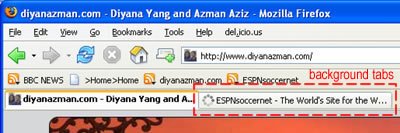
To open links in new tabs;
Just right click on the links and select “Open Link in New Tabâ€
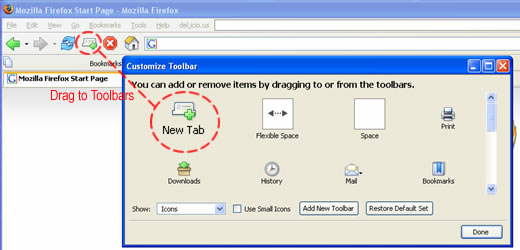
To add “Tab Icon†in Toolbars
Go to View -> Toolbars -> Customize
Then drag “Tab Icon†from “Customize Toolbar†template to “Firefox Toolbarâ€.


ctrl+right click and click using 3rd button (scroller) also can 😉
ctrl+left click and click using 3rd button (scroller) also can 😉
really???..i can’t do it..
Ctrl+T will do this just fine!